ChatLab provides automated email reports that keep you informed about your chatbot's activity. You can choose between daily reports (covering the previous calendar day in UTC) and weekly reports (covering the previous seven complete UTC days), each configurable per chatbot.
Where to find reports
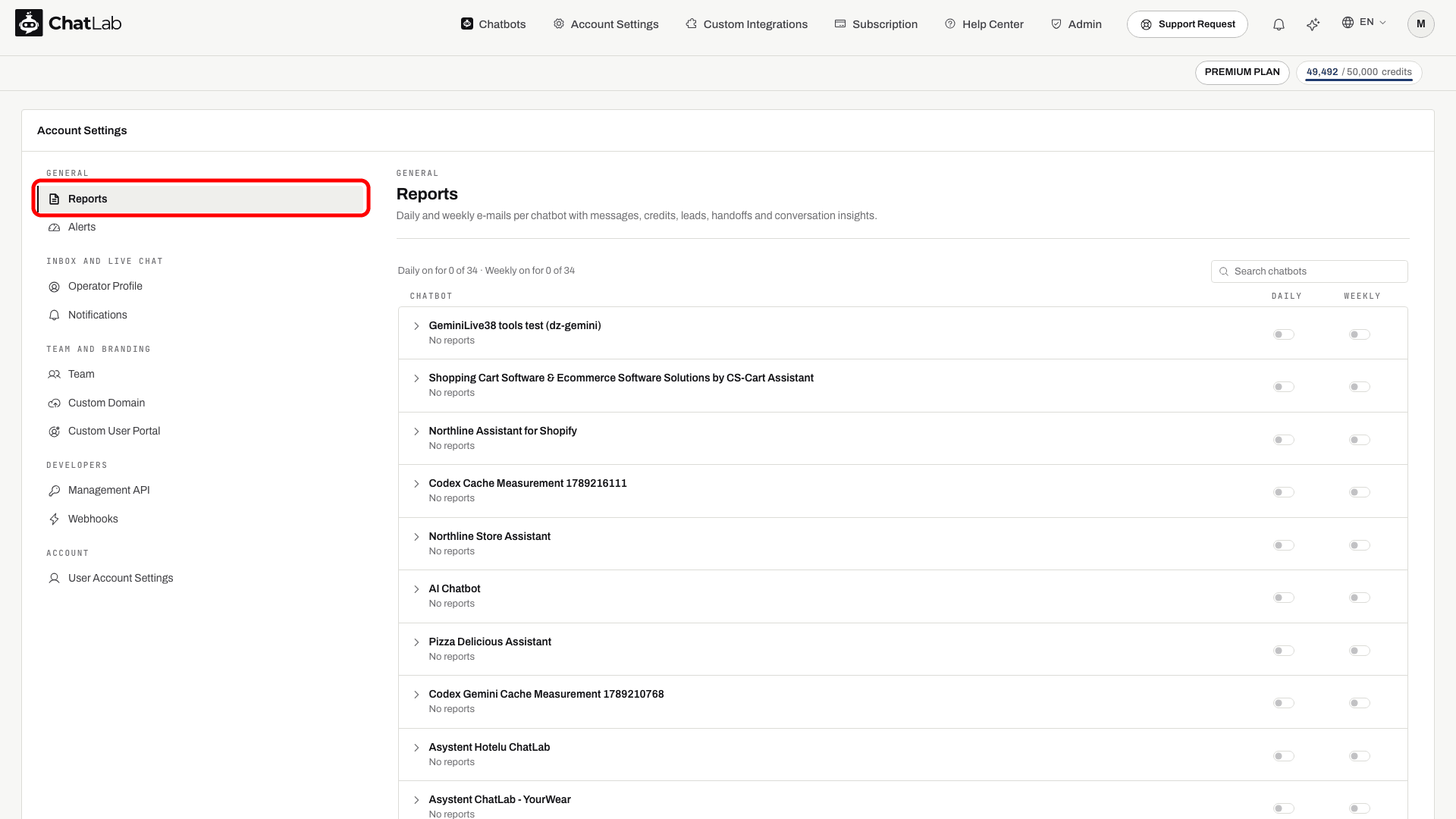
Go to Account Settings. The page opens on Reports, the first item of the General group. It lists all your chatbots with a Daily and a Weekly switch in each row; the line above the list shows for how many chatbots each report is on, and Search chatbots finds a chatbot in a long list.
Daily Report
Configuration
- Go to Account Settings > Reports
- Turn on the Daily switch in the row of each chatbot you want to monitor. The row opens and shows the Daily report settings
- Under Recipients, enter one or more email addresses (separate several addresses with commas). Your own address is filled in by default
- Optionally turn on Send daily report only when the chatbot had activity to skip reports on quiet days
- Click Save changes at the bottom of the page
Click a chatbot's name to open or close its settings at any time; the line under the name summarises who gets which report.
What's inside?
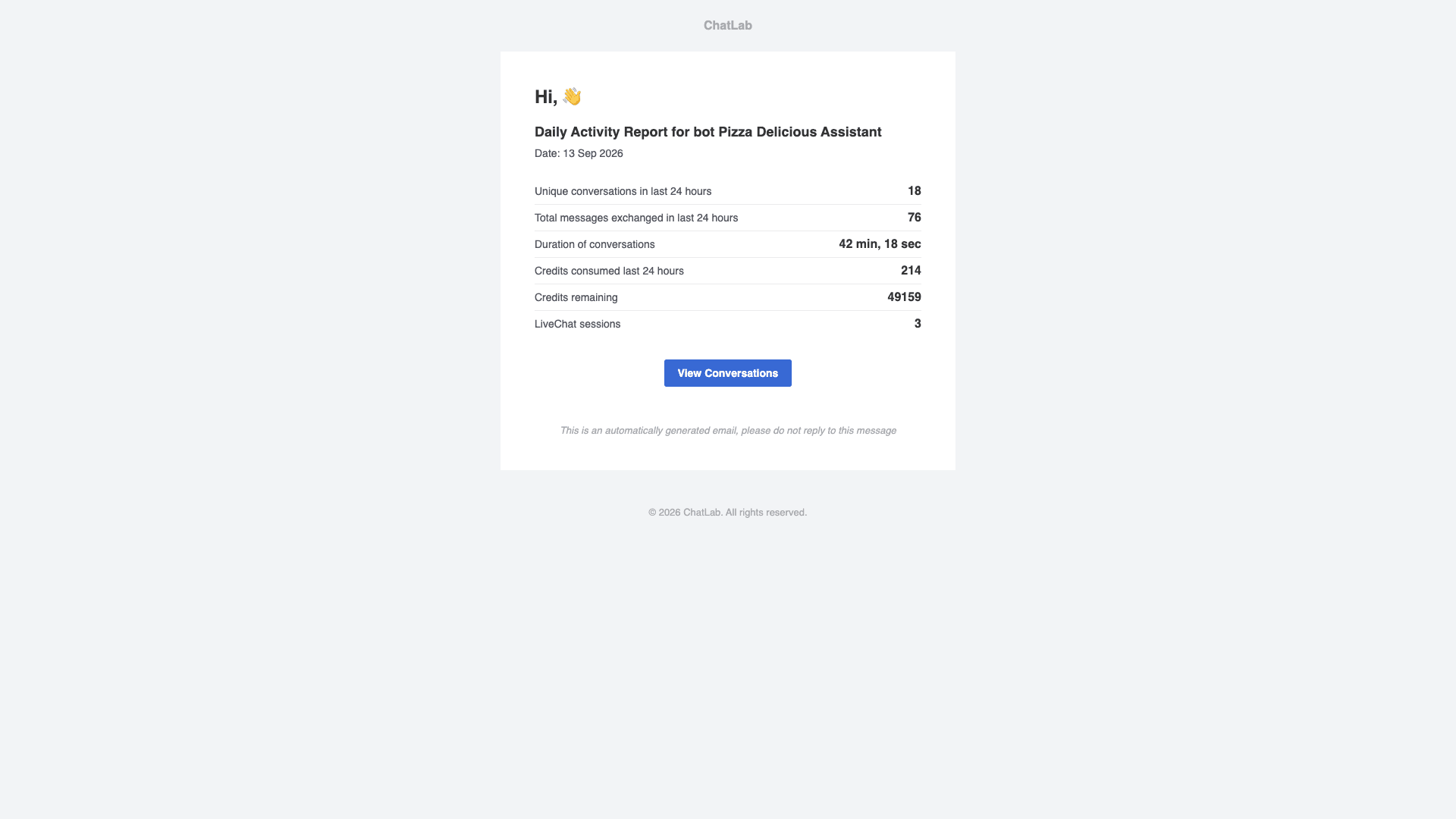
Inside the daily email, you'll find a concise summary of your chatbot's activity over the previous calendar day (UTC). This includes the number of unique conversations, the total messages exchanged, the duration of conversations, credits consumed and remaining, and an overview of your LiveChat sessions.
You can send daily summary emails to multiple recipient email addresses.
Conversation insights
The daily report can include AI-generated conversation insights based on dialogues with your chatbot. These insights are updated once a week and are organized into three sections:
- Lack of Knowledge Areas - instances where the chatbot encountered difficulties or the user was not satisfied with the answer
- Most Frequent Questions - a summary of the most commonly asked questions and topics from the last week
- Other Key Insights - additional valuable patterns the AI identified from user conversations
See AI Conversation Insights for report generation and language settings.
Weekly Report
The weekly report provides an automated summary of your chatbot's conversation activity over the previous seven complete UTC days, delivered by email on the day you choose.
Configuration
- Go to Account Settings > Reports
- Turn on the Weekly switch in the chatbot's row
- In the Weekly report settings, choose your Preferred day of week (Monday through Sunday)
- Enter one or more addresses under Recipients
- Optionally turn on Send weekly report only when the chatbot had activity to skip weeks with no conversations
- Click Save changes
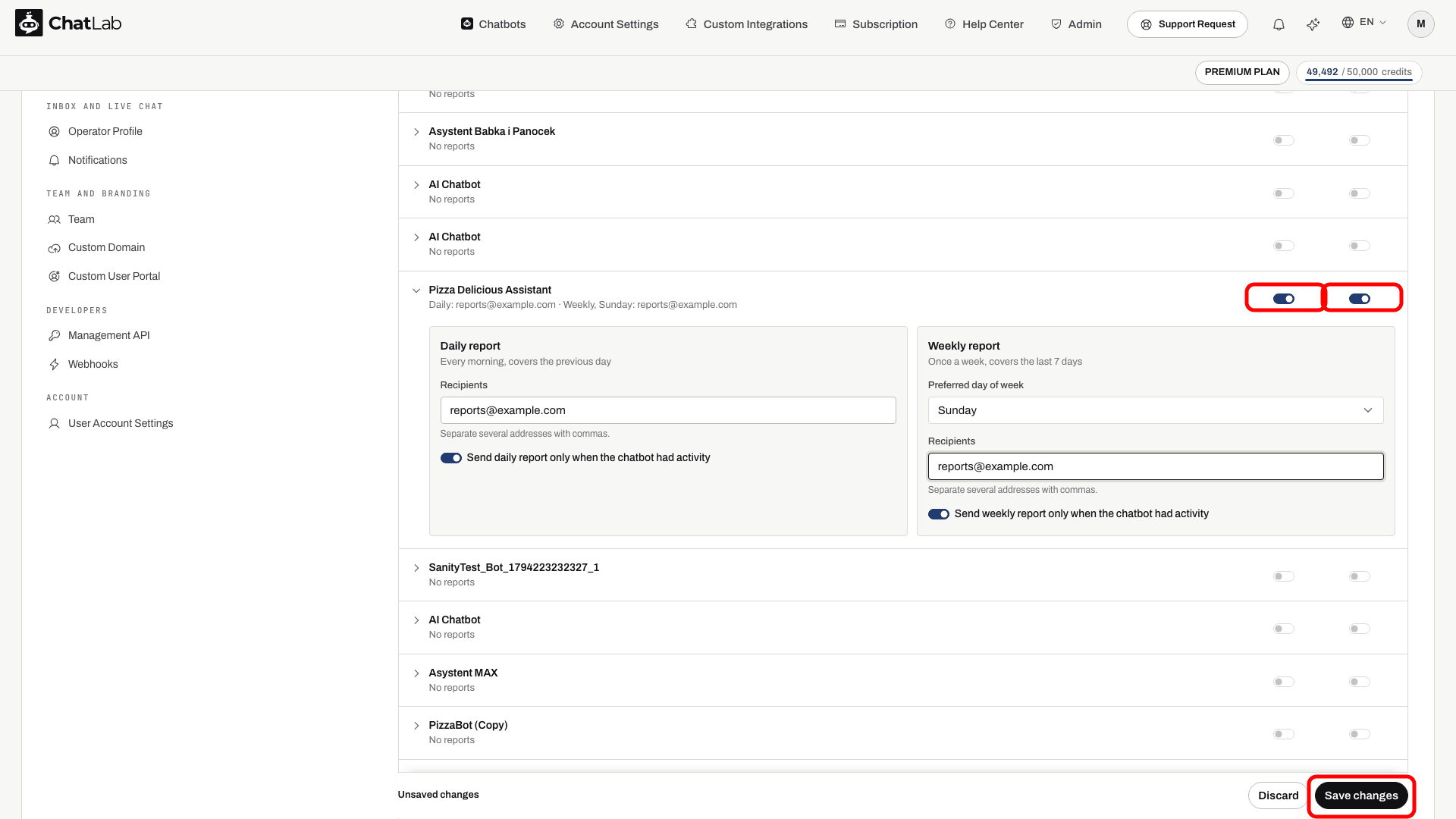
You can send weekly reports to as many email addresses as you want, just like daily reports.
Check delivery
After saving, check the recipient inbox after the next scheduled run. Reports are not sent for paused chatbots. If an expected email is missing, check the recipient addresses, spam folder, activity-only setting and whether the bot had conversations in the report period. AI insights appear only when available for the bot; enabling email delivery does not generate a new AI analysis immediately.