You can share your chatbot with clients, collaborators, or testers via a direct link or a QR code - no website embedding required. Recipients can interact with your chatbot immediately, without needing a ChatLab account.
Before you start
Create and train your chatbot, review its public content and access restrictions, and test a new conversation in the Test section of the Test & Deploy tab before sharing it with customers. See How to create your first chatbot.
Where to find sharing links
Select your chatbot and open the Test & Deploy tab. The live chatbot preview is on the left; Share a test link is in the Deploy column on the right, below the embed code.
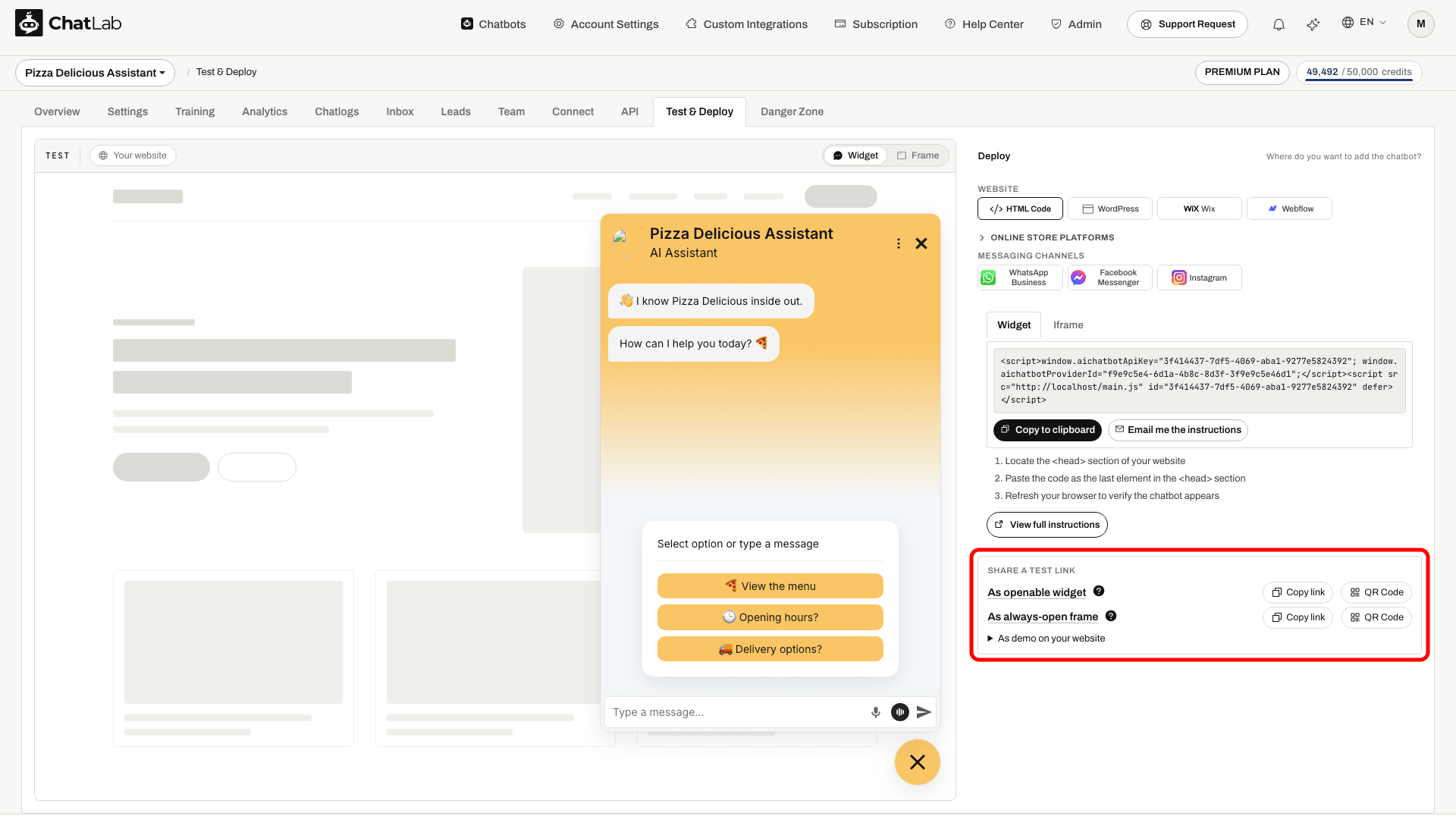
Sharing options
There are two sharing modes, each with a clickable link, a Copy link action and a QR Code action:
-
As openable widget - opens a page with a chat icon in the corner. Clicking the icon opens the chatbot in a popup window. This replicates how visitors experience the chatbot on a real website.
-
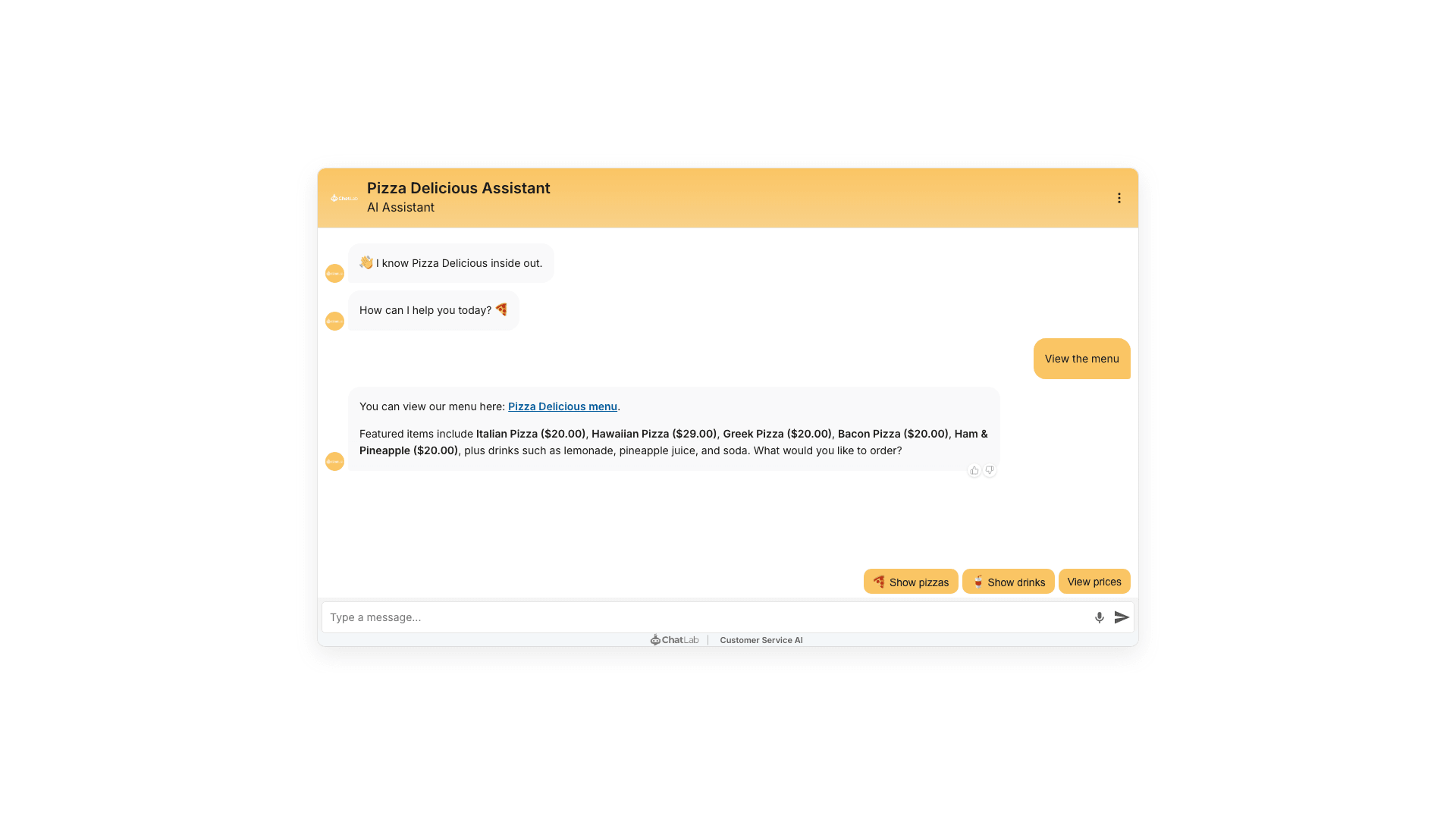
As always-open frame - opens a page with the chatbot displayed in a large, always-visible frame in the center of the screen. Best for demos and focused testing sessions.
For each option, you can:
- Click the link text to open a preview in a new browser tab
- Click Copy link next to the link to copy the URL to your clipboard, then share it via email, chat, or any other channel
- Click QR Code to open a modal with a scannable QR code that encodes the same URL
Sharing via QR code
Clicking QR Code next to either sharing mode opens a modal with a scannable QR code. This is especially handy when you want to test the chatbot on a phone - just point the camera at the code instead of typing the URL.
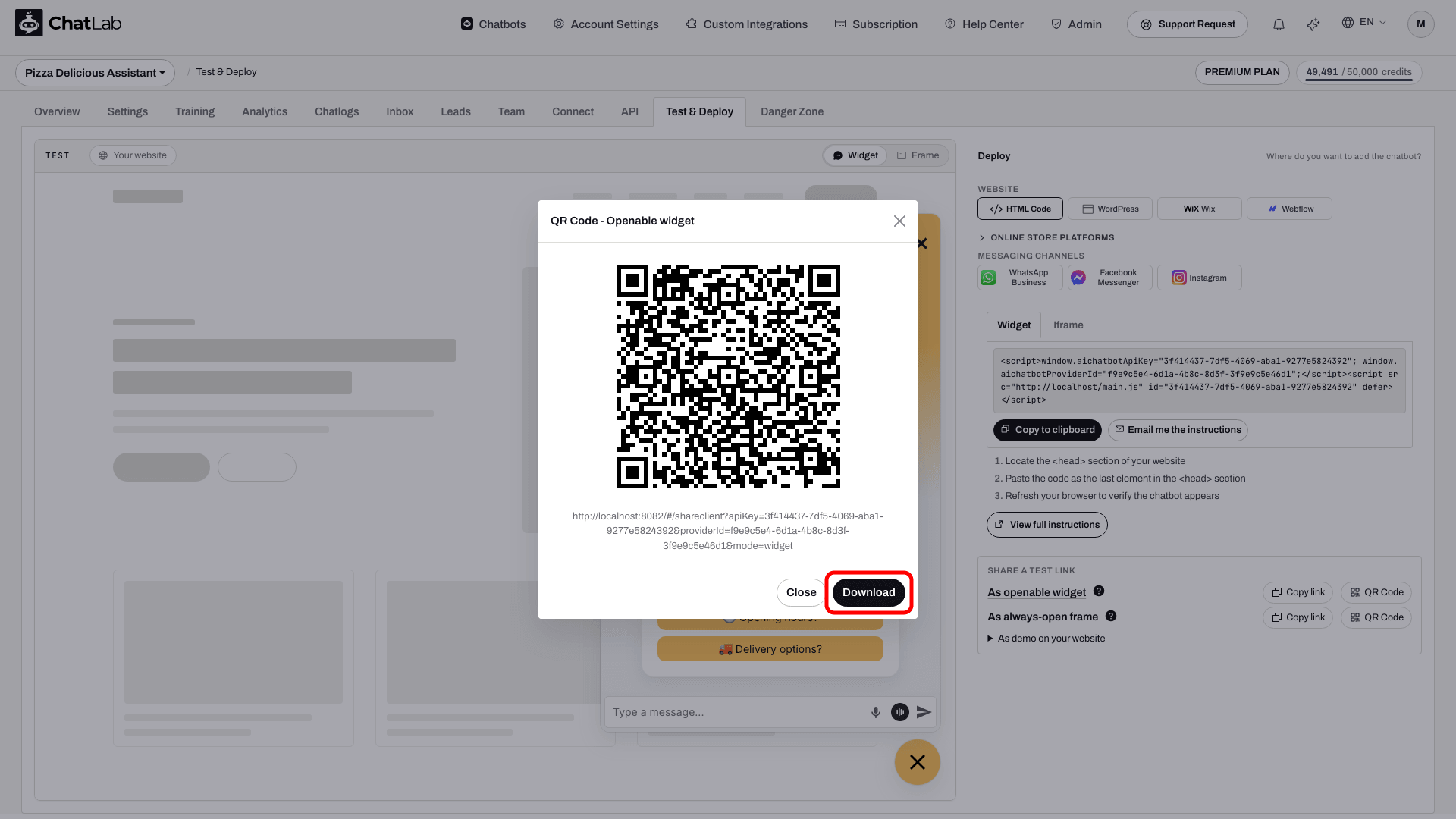
In the modal you can:
- Scan the QR code directly with a phone camera to open the chatbot
- Click Download to save the QR code as a PNG image (useful for printing on flyers, business cards, or adding to slides)
- Close the modal with the X button, the Close button, by pressing Esc, or by clicking outside the modal
What recipients see
When someone opens a sharing link or scans the QR code, they see your chatbot on a clean, empty page - fully functional with all your training, settings, and customizations applied. Here is an example of the always-open frame mode:
Important notes
- A sharing URL opens a separate page. You can link to it, but it is not an embed snippet. To embed the chatbot on a website, use the code snippet from the Deploy section of the Test & Deploy tab.
- Sharing links and QR codes use your chatbot's live configuration. After saving settings or completing training, reopen or refresh the shared page to test the updated bot.
- Conversations through sharing links consume message credits just like regular chatbot conversations. Test the link in a separate browser or on your phone before sharing it; the chatbot's configured access restrictions still apply.